How it works
This page explains the words facetshot uses and what happens during a run. The glossary at the end defines each term briefly.
Targets, devices and variants
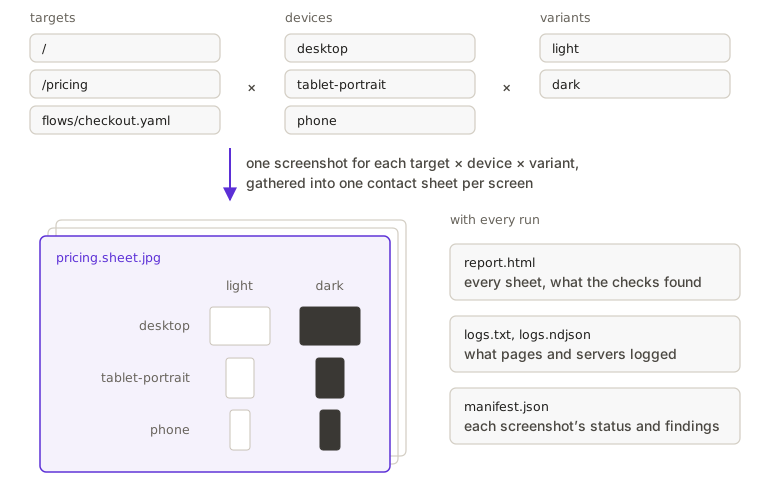
Section titled “Targets, devices and variants”Every screenshot is one target on one device in one variant.
A target is what you want to see. You tell facetshot which kind it is by how you write it:
| Written as | Kind |
|---|---|
/path, https://… |
a web page |
app:/path |
an app screen (iOS simulator or desktop window), opened by deep link |
story:id, story:Title/* |
a Storybook story |
preview:Name, preview:Group/* |
a SwiftUI scene (SwiftUI scenes) |
flows/name.yaml |
a flow |
Your config can give targets short names: aliases: { cart: '/shop/cart' }.
A device is where the screenshot is taken: a browser window of a certain size, a simulator, or a desktop window size.
These are built in, and your config can add more (devices):
| Name | What |
|---|---|
desktop |
browser, 1440×900 |
laptop |
browser, 1280×800 |
tablet-landscape, tablet-portrait |
browser, 1180×820 and 820×1180, touch |
phone, phone-small |
mobile browser, 390×844 and 360×740 |
iphone |
iPhone simulator |
ipad-portrait, ipad-landscape, ipad-half |
iPad simulator in each orientation, and in half of Split View |
window, window-small, mac, mac-narrow |
a desktop app’s window at 1280×800, 960×640, 1280×800 and 1040×640 |
A device group names several devices at once:
| Group | Devices |
|---|---|
review |
desktop, tablet-landscape, tablet-portrait, phone |
web |
the same four as review |
ios |
iphone, ipad-portrait, ipad-landscape |
apple |
iphone, ipad-portrait, ipad-landscape, ipad-half, mac |
windows |
window, window-small |
A variant is how the screen is shown: light or dark, larger text, more contrast, right to left, offline, or as a
different signed-in persona. The built-in variants are light, dark, large,
xlarge, xxl, contrast, forced, rtl, offline and print. Join variants with + to combine them:
dark+large. The variant groups are modes (light, dark, large) and a11y (light, dark, xxl, contrast).
facetshot takes every target on every device that can show it, in every variant. A web page isn’t taken on an iPhone
simulator, and an app: screen isn’t taken in a browser. If nothing you asked for can show a target, the summary
says so.
Profiles
Section titled “Profiles”A profile is a named choice of devices and variants, so you don’t have to repeat --on and --as. It says
nothing about who is signed in; that is a persona’s job. default is used when you pass neither option; choose
another with -p. Two profiles are built in, and your config can change them or add more:
profiles: { default: { on: ['review'], as: ['light', 'dark'] }, // built in full: { on: ['review'], as: ['light', 'dark', 'large'] }, // built in app: { on: ['iphone', 'ipad-landscape'], as: ['light', 'dark'] }}facetshot /settings -p fullA profile can also say what to take, with targets. Then it is a whole batch you run again and again, for example
before each release, with no targets on the command line:
release: { targets: ['/', '/pricing', '/settings', 'flows/*.yaml'], on: ['review', 'iphone'], as: ['light', 'dark', 'large']}facetshot -p releaseEach target is taken on the profile’s devices that can show it: here the web pages on the review devices, and any
app: flow on the iPhone. A target no device in the profile can show gets the usual devices for its kind instead.
Targets you name on the command line replace the profile’s. Flows shows how to
build such a batch.
What a run gives you
Section titled “What a run gives you”Each run gets a folder, .facetshot/runs/<run id>/, and .facetshot/latest points at the newest one. The last 20
runs are kept; to keep one for good, save it as a baseline.
| File | What it is |
|---|---|
<screen>.sheet.jpg |
the contact sheet: devices down the side, variants across the top. Failed cells say why; cells with problems carry a badge; changed cells have a red outline |
<screen>/<device>.<variant>.png |
each screenshot at the device’s real pixel density |
report.html |
every screen as a grid, what the checks found, the logs, and a switch to show changed pixels (--open opens it) |
summary.md |
the summary as Markdown with the sheets as images, for a pull request or an issue |
logs.txt, logs.ndjson |
what each page and server logged, for people and for programs (Logs) |
manifest.json |
each screenshot’s status, timing, findings, log counts and (when comparing) how much changed, described by schema/manifest.v1.json |
Getting ready, once
Section titled “Getting ready, once”Before the first screenshot, facetshot gets things ready in this order, and reuses each piece while it is still valid:
- Services your app needs (an API, a mock server) start, unless something healthy already answers where they would be.
- Test data is made by your config’s
fixtures.setup. The values it returns fill{placeholders}in targets. - Builds run if their inputs changed since the last build.
- The app’s server, browsers and simulators start.
Everything facetshot starts, it also stops. Test data is recorded as it is made, so if a run is killed partway, the next run removes what was left behind.
The background helper
Section titled “The background helper”The first time you run facetshot, it starts a background helper: a process that keeps the browser, your app’s
servers, simulators and test data ready between runs. That is most of why the second run is fast. The command that
controls it is facetshot daemon. There is one helper per user account on the machine, and every run goes through
it, whether it comes from a terminal, an agent’s MCP server or a script, so they all share one browser and the same
limits.
You don’t need to manage it. It stops by itself after 15 minutes without work and closes everything it started. To see what it holds, or to stop it:
facetshot daemon statusfacetshot daemon stopIt is the “daemon” in facetshot daemon, --no-daemon and FACETSHOT_NO_DAEMON. --no-daemon does everything in
the current process instead. Nothing stays running afterwards, so the next run is
slower. Architecture describes when it starts, restarts and stops.
Glossary
Section titled “Glossary”| Term | Meaning |
|---|---|
| accessibility tree, snapshot | the screen as assistive technology sees it: roles, names and states. Playwright’s snapshot (or macOS’s Accessibility on a Mac) gives sessions their element list and refs |
| Agent Skill | a folder with a SKILL.md file that tells an AI agent when and how to use a tool. facetshot’s is in skills/facetshot/ |
| background helper | the long-running process that keeps browsers, servers and simulators ready between runs. facetshot daemon controls it |
| baseline | a run saved under a name, to compare later runs with (Comparing) |
| cell | one target on one device in one variant: one square on a contact sheet |
| CI | continuous integration: a server that builds and tests every change (Continuous integration) |
| contact sheet | one image per screen with every device and variant side by side |
| deep link | an address such as myapp://settings that opens an app on a given screen |
| device | a screen size and type: a browser viewport, a simulator, or a window size |
| fixture, test data | records your config’s fixtures.setup makes before a run (a project, a user) and removes afterwards (Test data) |
| flow | a file of steps (click, type, wait) that reaches a state no address leads to, with screenshots along the way (Flows) |
| MCP | the Model Context Protocol, the standard way AI agents call outside tools. facetshot mcp is an MCP server (MCP tools) |
| persona | a signed-in user, defined in your config and chosen by a variant (Personas) |
| Playwright | the browser-automation library facetshot uses to drive Chromium, WebKit, Firefox and Electron |
| profile | a named choice of devices and variants, and optionally of targets (Profiles) |
| ref | a short name such as e14 for an element in a session’s latest list, usable in the next step |
| selector | a way to name an element in a step: role=button[name="Save"], text=Save, CSS such as #save (Naming an element) |
| session | a page or app window kept open to use step by step (Sessions) |
| simulator | Xcode’s iPhone and iPad simulator, which runs iOS apps on a Mac (iOS simulators) |
| target | what to take a screenshot of: a path, an app screen, a story, a SwiftUI scene or a flow |
| variant | a display setting such as dark mode or large text, or a persona; one column of a contact sheet |