Sessions
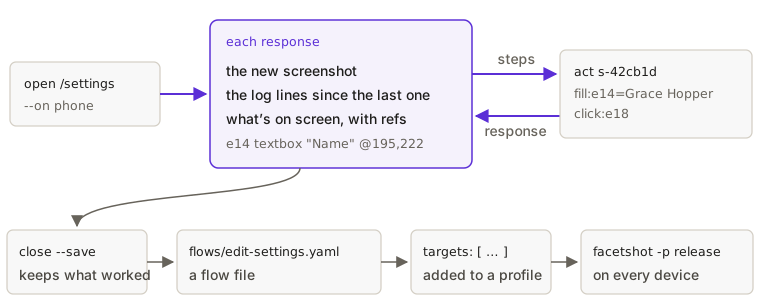
Screenshots and flows show what a screen looks like. Sometimes you need to find out first: what happens when I right-click this row, does the menu fit on a phone, what does the page log when I press Save. A session keeps one screen open (a web page, or a desktop app’s window) so you, or an agent, can use it one step at a time. After each step you get a screenshot, the log lines since the last step, and a list of what on screen can be clicked or typed into.
From the command line
Section titled “From the command line”$ facetshot open /settings --on phones-42cb1d · phone/light · http://localhost:53268/settings · "Lantern"Screenshot: .facetshot/sessions/s-42cb1d/001.png (390×844, CSS pixels)
Logs (2): +0.00s INFO navigation → http://localhost:53268/settings +0.00s INFO network GET /settings 200 3ms
On screen (6; name one by its ref in a step, e.g. click:e7): e7 link "Home" @207,34 e8 link "Pricing" @270,34 e9 link "Settings" @343,34 e14 textbox "Name" @195,222 ("Ada Lovelace") e16 checkbox "Send me a weekly summary" @27,272 (checked) e18 button "Save" @195,362The first line starts with the session’s id, which every following command needs. Open the screenshot to see the
page. Each line under “On screen” is something you can act on: its ref (e14), its role, its name, and the
point at its center on the screenshot.
Then use the page with act, giving as many steps as you like:
facetshot act s-42cb1d "fill:e14=Grace Hopper" click:e18 # type a name, press Savefacetshot act s-42cb1d rightclick:@120,120 # open the context menu therefacetshot act s-42cb1d "click:role=menuitem[name='Copy link to settings']"facetshot look s-42cb1d --full # the whole page, without doing anythingfacetshot close s-42cb1d --save flows/edit-settings.yaml # keep the steps that workedEach response has the same shape as the one from open: the new screenshot, the log lines since the last response
(here, what the page logged when Save was pressed), and the list again:
Logs (2): +0.00s INFO console Saving settings… +0.00s WARN console The weekly summary setting is deprecated and will move to Notifications. (/assets/index-BQcy4Hsw.js:9)--no-screenshot leaves out the screenshot and --no-elements the list, when you don’t need them. The list has only
what is on screen, at most 200 elements, so scroll to reach the rest. A response shows at most the last 40 log lines;
facetshot logs <id> has them all. --tree adds the page’s whole accessibility tree (all its text and structure) as
text. facetshot list sessions lists what’s open.
Every option is in the command reference.
A session closes by itself after 10 minutes without use (FACETSHOT_SESSION_IDLE_MINUTES changes this). At most 6
sessions are open at once for your user account, because each one is a page with its own memory. Sessions belong to
your user account, not to one project or agent: any terminal or agent of yours can list them and act on them by id.
Naming what to touch
Section titled “Naming what to touch”A step that touches an element can name it by its ref (e14), by a point on the screenshot (@195,362, in CSS
pixels, the same units as the screenshot), or by a selector. Naming an element lists
every form.
On a web page, refs come from Playwright’s accessibility snapshot, the same snapshot Playwright MCP uses (in a Mac window, from macOS’s Accessibility interface). They last until the page changes, so use the ones from the latest response. When you save a session as a flow, each ref is written as a selector that finds the same element again (by its role and name where it has them), so the flow plays back in a later run, on every device:
start: /settingssteps: - fill: role=textbox[name="Name"i] with: Grace Hopper - click: role=button[name="Save"i] - rightclick: '@120,120' - shot: endA point (@120,120) is saved as it is, so check that it still lands on the right element on other devices, or
replace it with a selector. A flow is saved as .yaml, .yml or .json, inside the project folder, and never over
an existing file that isn’t a flow. Text you typed is saved as you typed it, passwords included.
Every step works in a session except shot, which is ignored (each response has a screenshot
anyway); which steps a desktop app takes is in Flows on apps. Steps run in order, and the
first one that fails stops the rest.
You still get the screenshot of where the page ended up, with which step failed and why, and act exits with 1.
Logs as you go
Section titled “Logs as you go”Each response carries the log lines since the previous one: console messages, uncaught errors, navigations, requests
(those for scripts, styles, images and fonts only at --level debug), and what the servers facetshot started wrote.
To watch a session’s log in another terminal while you or an agent use it:
facetshot logs s-42cb1d --follow # for peoplefacetshot logs s-42cb1d --follow --json # one JSON object per line, for programsfacetshot logs s-42cb1d --follow --level warn # only warnings and errorsSee Logs for what is recorded.
From an agent
Section titled “From an agent”The MCP server has three tools for sessions: open, act and close (MCP tools). Each response is the
text above plus the screenshot as an image, so the agent sees the screen, reads the log and picks the next step in one
turn. act with no steps looks again. Sessions an agent opened are closed when its MCP server stops, whether the
agent closes its input or the server is ended by a signal.
A session acts as the signed-in persona, and its steps can do anything a person could do on that page. See Security before pointing sessions at a live site.
What sessions open
Section titled “What sessions open”- Web pages: paths and full URLs, with the project’s servers, sign-in, variants and test data, the same as a run.
- Electron apps:
facetshot open app:/reports --on windowlaunches the app, andclosequits it. The responses carry the main process’s output with the window’s, and amenu:step chooses from the app’s menu bar. - Tauri frontends, with
desktop.frontendset: the frontend in WebKit, withinvoke()answered from your config. The Rust side doesn’t run there. - Mac app windows: native Mac apps (Flutter’s included) and Tauri’s real window,
facetshot open app:/ --on mac. The list comes from macOS’s Accessibility interface, the screenshot is the window’s own, and points are in points rather than CSS pixels. This needs the Accessibility permission; see Steps in a Mac window. Agotorelaunches a native Mac app on that screen (Tauri gets a deep link instead). A Mac session takes the screen only while a step runs, so a run can use the screen between your steps.
Sessions on iOS simulators and Storybook stories are planned. Until then, use flows for those.
Test data a session made stays while the project’s servers do, and goes with them, not when the session closes.
Sessions are kept by the background helper, so they aren’t available with --no-daemon or FACETSHOT_NO_DAEMON.