Flows
Some screens have no address: a menu that’s open, a confirmation dialog, a form with an error under one field. A
flow reaches such a screen with a few steps, and takes a screenshot wherever you say. This page is also the
reference for every step, used by flows, --do, sessions and the MCP tools.
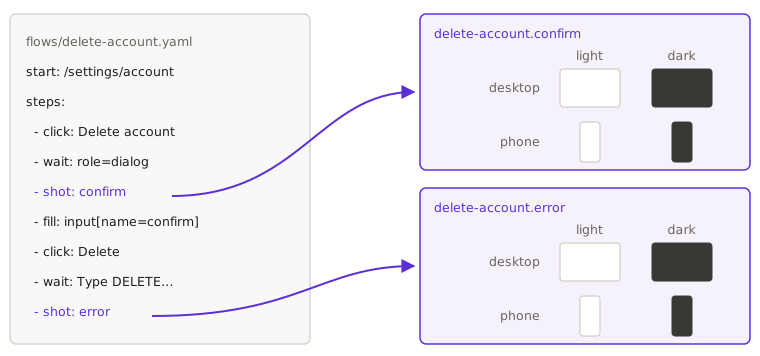
start: /settings/accountsteps: - click: "role=button[name='Delete account']" - wait: 'role=dialog' - shot: confirm - fill: 'input[name=confirm]' with: 'wrong words' - click: "role=button[name='Delete']" - wait: 'text=Type DELETE to confirm' - shot: errorfacetshot flows/delete-account.yaml --on phone,desktop --as light,darkEach shot becomes a screen of its own in the results, here delete-account.confirm and delete-account.error,
each with its own contact sheet. The flow runs from the start once per device and variant.
Steps without a file
Section titled “Steps without a file”For a quick look, give the steps on the command line with --do. They are played on every target you name, and
each shot is a screenshot:
facetshot /settings/account --do "click:role=button[name='Delete account']" --do "wait:role=dialog" --do shot:confirmAgents pass the same strings in the MCP tools’ steps, and sessions take them in act.
The second column is how a step is written in a flow file; the third is the same step on the command line, in
act, and in MCP steps.
| Step | In a flow file | Inline | Does |
|---|---|---|---|
| click | click: <element> |
click:<element> |
clicks it |
| double-click | dblclick: <element> |
dblclick:<element> |
double-clicks it |
| right-click | rightclick: <element> |
rightclick:<element> |
right-clicks it, to open a context menu |
| tap | tap: <element> |
tap:<element> |
taps it (touch devices) |
| long press | longpress: <element> |
longpress:<element> |
presses and holds it for 0.8 s |
| hover | hover: <element> |
hover:<element> |
moves the pointer over it |
| focus | focus: <element> |
focus:<element> |
focuses it |
| drag | drag: <element> + to: <element> |
drag:<element>><element> |
drags the first onto the second |
| fill | fill: <element> + with: <text> |
fill:<element>=<text> |
replaces a field’s text |
| type | type: <text> |
type:<text> |
types into whatever has focus |
| press | press: <key> |
press:<key> |
presses a key, with modifiers: Enter, Escape, Shift+Meta+K |
| select | select: <element> + option: <value> |
select:<element>=<value> |
picks an option in a <select> |
| scroll the page | scroll: <pixels> |
scroll:<pixels> |
scrolls the page by that much |
| scroll to an element | scroll: <element> |
scroll:<element> |
scrolls the element into view |
| scroll inside an element | scroll: <element> + by: <pixels> |
scroll:<element>=<pixels> |
scrolls inside a scrollable element |
| wait | wait: <element> |
wait:<element> |
waits until it is visible (up to 15 s) |
| wait until gone | gone: <element> |
gone:<element> |
waits until it is hidden (up to 15 s) |
| go to | goto: <path> |
goto:<path> |
opens another address |
| back, forward, reload | back or back: true |
back |
the browser’s buttons |
| menu | menu: File>Export… |
menu:File>Export… |
chooses an item from a desktop app’s menu bar |
| screenshot | shot: <name> |
shot:<name> |
waits for the screen to be ready, then takes a screenshot |
A flow with no shot step takes one screenshot at the end. Steps that act on an element wait up to 10 seconds for
it. Inline, fill: and select: take the text after the last =, so the text itself can’t contain =; use a flow
file for such text.
Steps are played as written: they aren’t filled with placeholders or environment variables. A sign-in flow (a
persona’s login) therefore holds its credentials as written. Use a test account, keep the flow out of git, or give
the persona a storageState file instead (Personas).
Naming an element
Section titled “Naming an element”Wherever a step takes <element>, you can write any of these:
| Write | Means |
|---|---|
role=button[name='Save'] |
an element by its accessible role and name. It survives most layout and style changes |
text=Forgot password? |
an element by its visible text |
label=Email |
the field with that label |
placeholder=Search |
the field with that placeholder |
alt=Logo |
the image with that alt text |
title=Close |
the element with that title attribute |
testid=menu |
the element with data-testid="menu" |
#submit, .card:nth-child(2) |
plain CSS, or any other Playwright selector |
@x,y |
a point, in CSS pixels from the top left of the screen |
e14 |
in a session, the element with that ref in the latest list |
label=, placeholder=, alt=, title= and testid= use Playwright’s getByLabel, getByPlaceholder,
getByAltText, getByTitle and getByTestId. role= and text= are Playwright’s own selector engines. When
several elements match, the first one is used.
Finding the steps
Section titled “Finding the steps”If you don’t know the steps yet, open a session, try them one at a time, and close it with
--save flows/name.yaml. The steps that worked become a flow.
A batch to run again
Section titled “A batch to run again”Flows and profiles together make a plan you can run whenever you like. Decide once what to look at and how to get there, then let facetshot do it on every device and variant:
- Write a flow for each state that no address reaches (or save one from a session).
- List the pages and the flows in a profile’s
targets. A pattern such asflows/*.yamltakes every flow in the folder. - Run
facetshot -p release(MCP:capturewithprofile: "release") whenever you need to check everything.
profiles: { release: { targets: ['/', '/pricing', 'flows/*.yaml'], on: ['review'], as: ['light', 'dark', 'large'] }}The run plays the same steps everywhere, so the screenshots can be compared from one run to the next with
facetshot diff. facetshot list flows and facetshot list profiles show what a project already has.
When a step fails
Section titled “When a step fails”The screenshots the flow didn’t reach are reported as failed, with the step that stopped it:
delete-account.error phone/light: step 6 of delete-account ({"click":"role=button[name='Delete']"}) didn't work: Timeout 10000ms exceeded.The contact sheet then shows how far the flow got on each device.
Flows on apps
Section titled “Flows on apps”The same flow file works outside the browser. This table is the one place that says which steps work where:
| Where | Steps that work | Elements named by |
|---|---|---|
| Electron, Tauri’s UI in WebKit | every step, as in a browser; menu: in Electron |
everything above |
| Native Mac apps, Tauri’s real window | every step but longpress, back, forward and reload (how each is done) |
role=, text=, label=, title= (the whole name, any case), a point, a session’s ref |
| iOS simulator | click/tap, longpress (and rightclick, which becomes a long press), drag, fill, type, wait, gone, scroll by pixels (a swipe), goto (how) |
role=, text=, #id, an accessibility label, a point |
On the iOS simulator, dblclick, hover, focus, press, select, scroll to an element, menu, back,
forward and reload aren’t available. CSS selectors work only in pages (browsers, Electron, Tauri’s UI in WebKit).
On apps, a point is in points from the top left of the window (Mac) or the screen (iOS). A flow for an app starts
with start: app:/path. A plain start: /path also runs in the desktop app’s window when the config has a
desktop section, and only there when it has no web section.